A. How to connect the application to your Allegro account
- Go to: https://developer.allegro.pl/
- Navigate to:
Manage API → My Apps
https://apps.developer.allegro.pl/
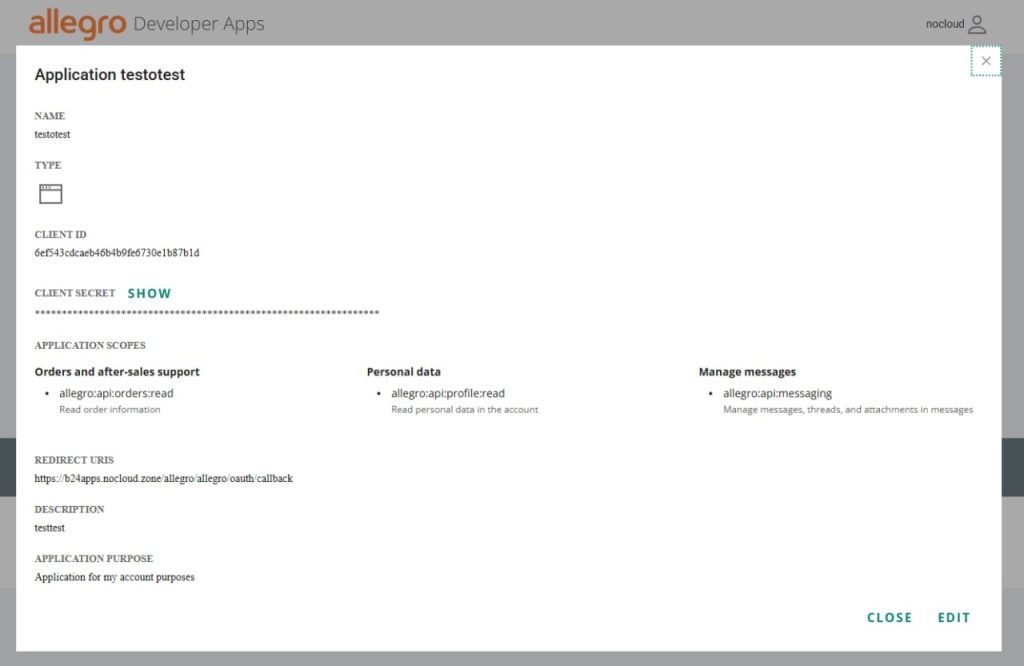
Click “Register application” - Fill in the required fields:
- Enter Application name and description
- Select application type:
“The application has access to the browser that the user uses to sign in to Allegro” - Set Application path (redirect URI):
https://b24apps.nocloud.zone/allegro/allegro/oauth/callback - Select the purpose of your application:
“I am creating the application only for my own needs” - Select permissions (at minimum):
- allegro:api:orders:read
- allegro:api:profile:read
- allegro:api:messaging
- Click Register and save your CLIENT ID and CLIENT SECRET
(you will need them for the Bitrix24 integration app)
- Install the Allegro Connect app from the Bitrix24 Marketplace
- Enter the Client ID and Client Secret obtained in the previous step
- Click “Connect with Allegro”
You will be redirected to the Allegro authorization page.
After successful authorization, the application will be connected to your Allegro account.
B. Allegro Connect Application Configuration
General Settings (Imports)
- Import orders – imports orders from Allegro into Bitrix24 CRM entities
- Only new orders –
- enabled: imports only new orders
- disabled: imports all previous orders
- Import chats – imports Allegro chats into Bitrix24 Open Lines
- Only new chats –
- enabled: imports only new chats
- disabled: imports all previous chats
- Responsible user – the Bitrix24 user assigned to created CRM entities
Field Bindings (Field Mapping)
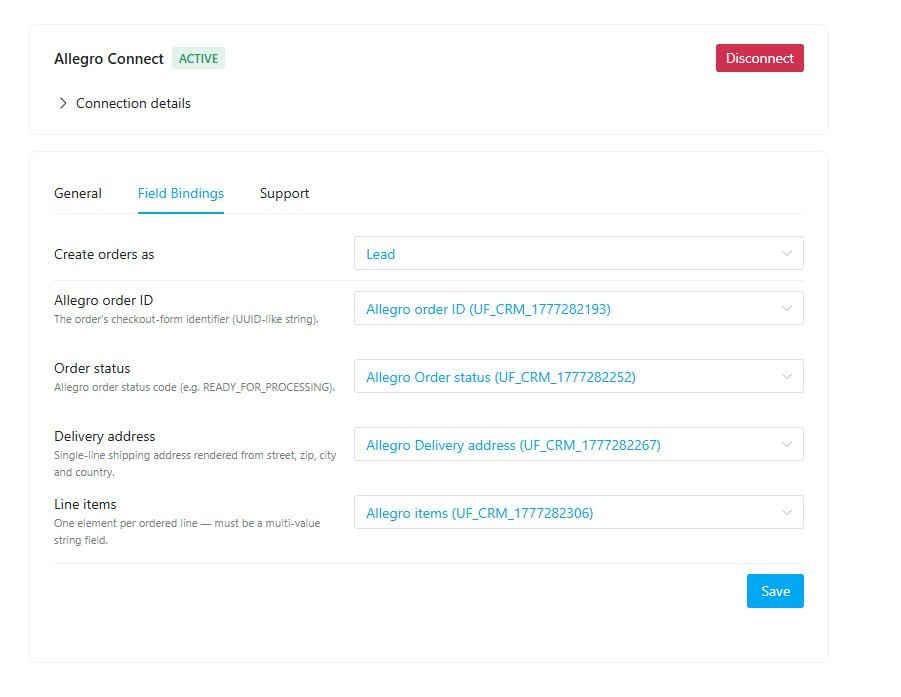
Configure how Allegro order data is mapped to Bitrix24 fields.
You can also create custom fields in Bitrix24 and select them from the dropdown.
- Create orders as – choose which entity to create:
- Lead
- Deal
- Smart Process (SPA)
- Allegro order ID – order identifier in Allegro
- Order status – current order status
- Delivery address – shipping address
- Line items – products included in the order
Support
- Support chat – contact support to ask any questions about setup or using the application
Have questions?
Contact us — we’ll be happy to assist you.
Phone: +48 790 618 514
Email: info@crmkonsultant.pl